Text Tool
The text tool allows you to add text overlays to your collages. You can customize fonts, colors, sizes, and apply various style options.
Font Materials
You can use system preset fonts or upload other fonts to achieve unique typography effects.
Preset Fonts
We provide a rich selection of preset fonts, including system fonts, serif fonts, monospace fonts, artistic fonts, and more.
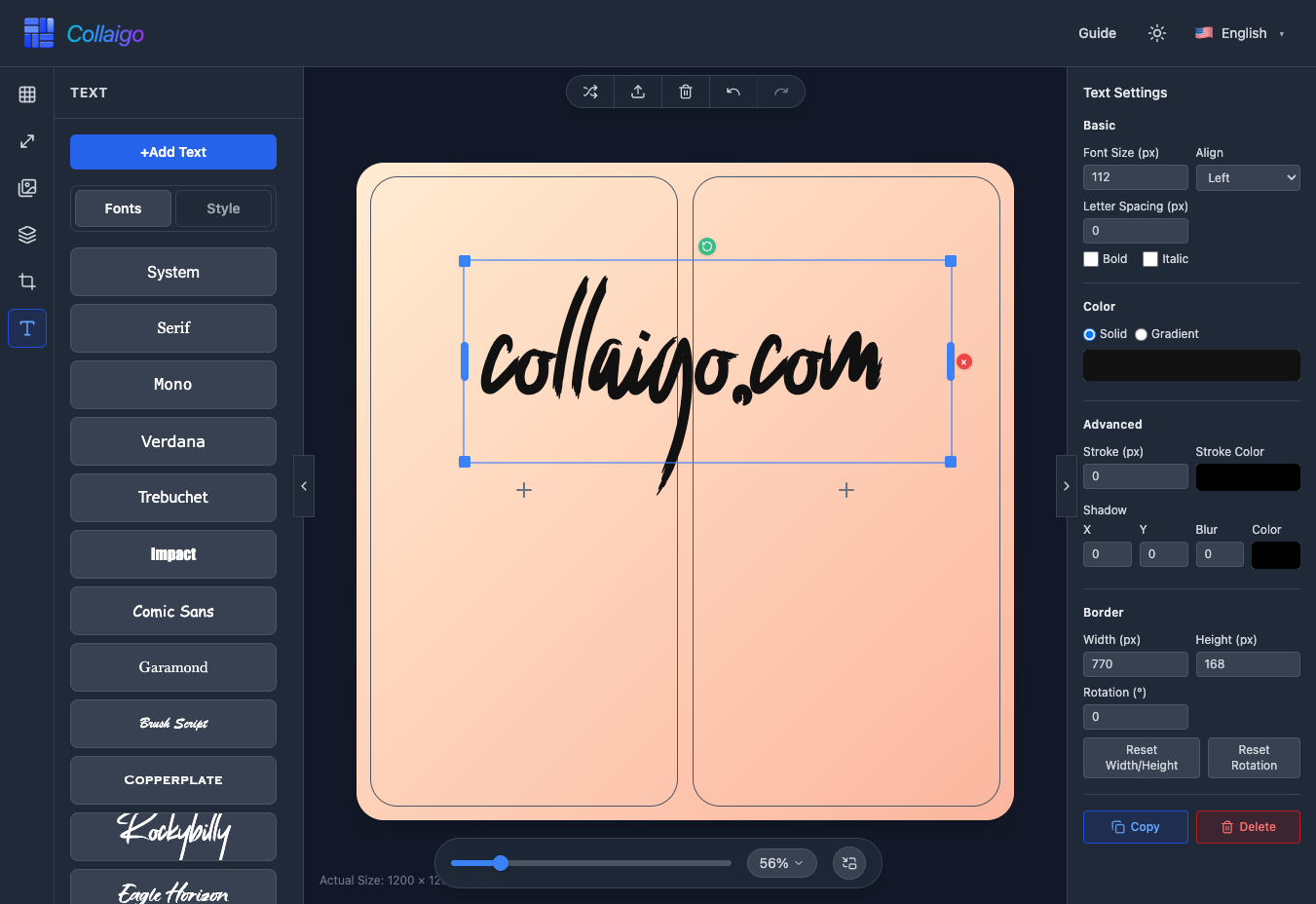
- System fonts: System, Verdana, Trebuchet, and other common system fonts with good compatibility.
- Serif fonts: Serif, Garamond, etc., suitable for formal documents and traditional typography.
- Monospace fonts: Mono, suitable for code and monospace typography needs.
- Artistic fonts: Rockybilly, Eagle Horizon, Flowmery, etc., adding personality to designs.
- Multilingual fonts: Support for Chinese (PingFang), Japanese (Hiragino), Korean (Gothic Neo), Russian (Cyrillic Sans), Arabic (Arabic Modern), and more.
- Click a font button to apply it to the currently selected text element.
Custom Fonts
In addition to preset fonts, you can upload font files:
All user-uploaded fonts are stored only in your browser's local cache and are not uploaded to the server.
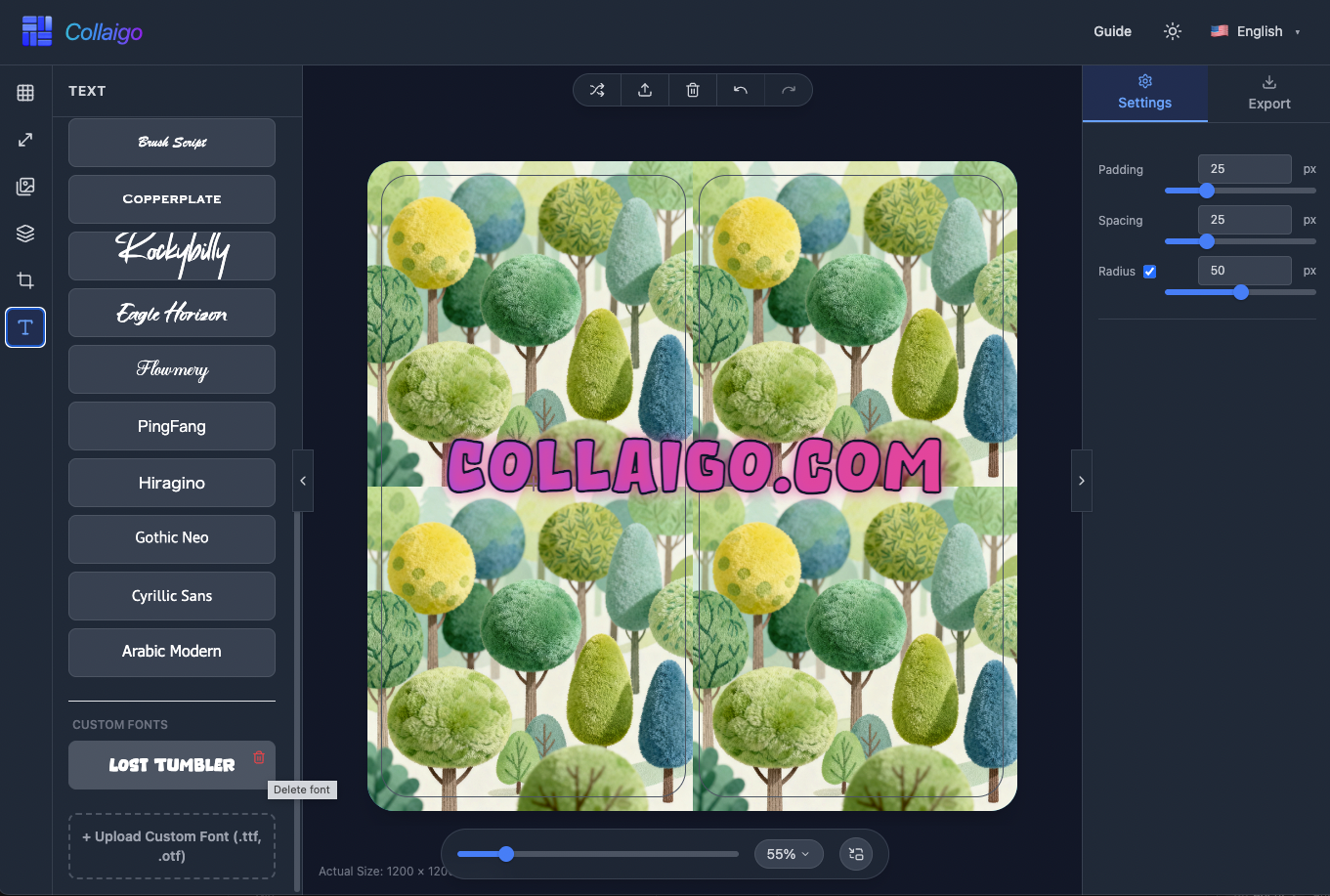
- Click the 『Upload Custom Font』 button at the bottom of the left navigation bar, select a local .ttf or .otf font file.
- Uploaded custom fonts will appear in the 『Custom Fonts』 section of the font list.
- Delete custom fonts: Click the delete icon to the right of the font, confirm to remove.
Text Settings
After applying a font, you can make various style adjustments and settings to the text.
Art Style Presets
In the 『Style』 tab of the left navigation bar, we provide rich art style presets for one-click application of beautiful text effects:
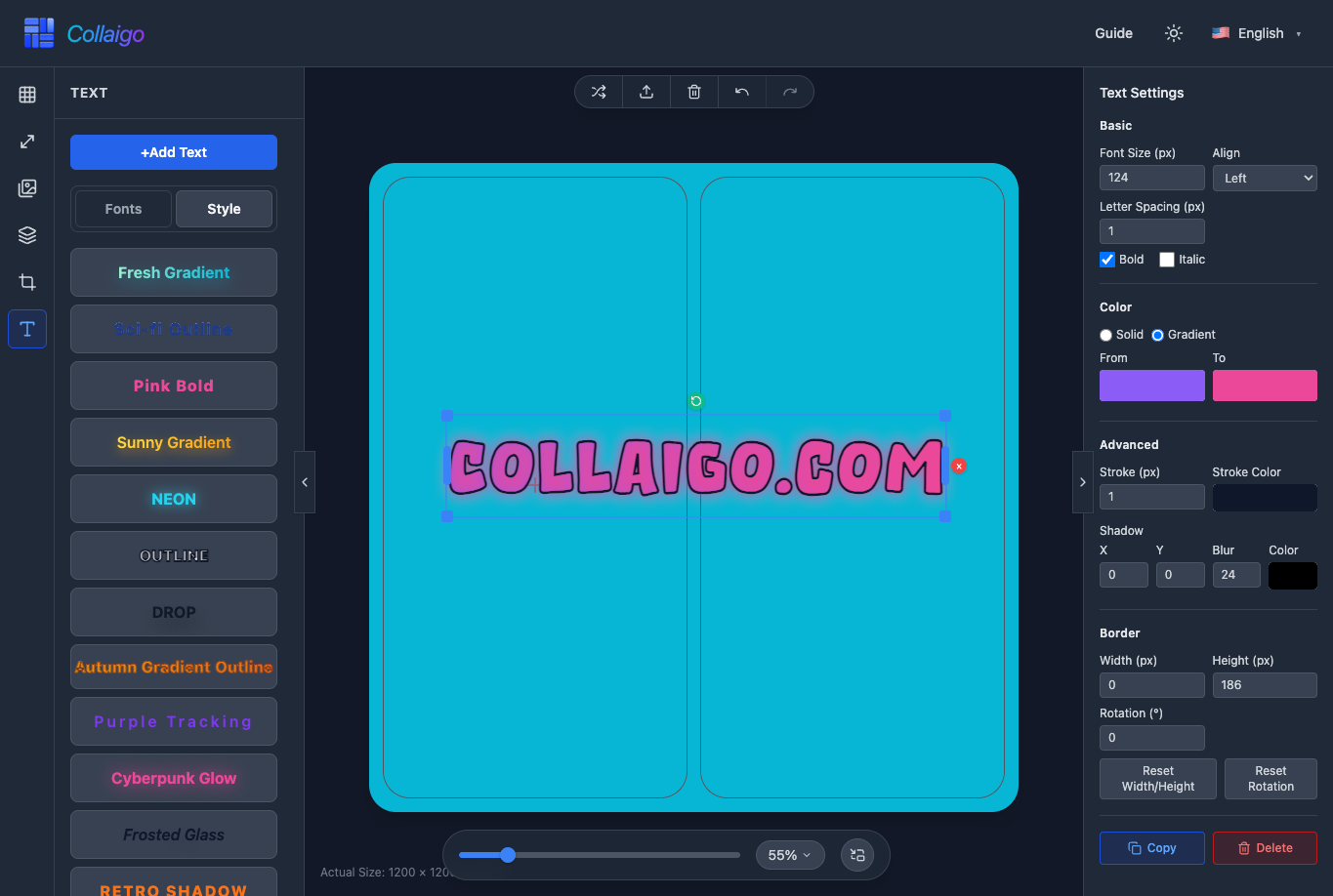
- Gradient Styles: Fresh Gradient, Sunny Gradient, Autumn Gradient Outline, Aurora Blend, etc., adding colorful gradient effects to text.
- Stroke Styles: Sci-fi Outline, OUTLINE, etc., adding outline stroke effects to text.
- Shadow Effects: DROP, RETRO SHADOW, etc., adding dimensional shadow effects to text.
- Glow Effects: NEON, Cyberpunk Glow, etc., adding cool glow effects to text.
- Special Styles: Pink Bold, Purple Tracking, Frosted Glass, Newspaper Serif, etc., providing diverse text style options.
- Click any style preset button to quickly apply it to the currently selected text element without manually adjusting parameters.
Basic Settings
In the 『Basic』 tab, you can adjust basic text properties:
- 『Font Size』: Set text size (8-400px) for precise control of text dimensions.
- 『Align』: Choose left align, center, or right align to control text position on the canvas.
- 『Letter Spacing』: Adjust spacing between characters (-5 to 20px) to optimize text layout.
- 『Bold』, 『Italic』, 『Uppercase』: Quickly apply text style effects.
Color Settings
In the 『Color』 tab, you can customize text color and fill effects:
- 『Solid』: Choose any color from the color picker, or directly enter a hexadecimal color value.
- 『Gradient』: Create gradient fill effects by setting start and end colors.
Advanced Settings
In the 『Advanced』 tab, you can apply richer text effects:
- 『Stroke』: Set stroke width (px) and stroke color to add outline effects to text.
- 『Shadow』: Add text shadow effects, adjustable blur and color to enhance text depth.
Other Settings
In addition to the above settings, there are other features:
- 『Border』: Display the width, height, and rotation angle of the text element's border. You can reset width, height, and rotation angle.
- 『Copy』: Copy the currently selected text element for pasting elsewhere.
- 『Delete』: Delete the currently selected text element.
- Freely drag text elements on the canvas to adjust position and size for precise typography.