Templates
Templates are pre-designed layouts that help you quickly create beautiful collages. We offer a variety of preset templates for 2-12 photos. You can also create custom m x n layout templates, supporting up to 20x20=400 photos. Custom layouts can also be used for image stitching, supporting up to 20 photos horizontally or vertically.
Preset Templates
The preset template interface is shown below:
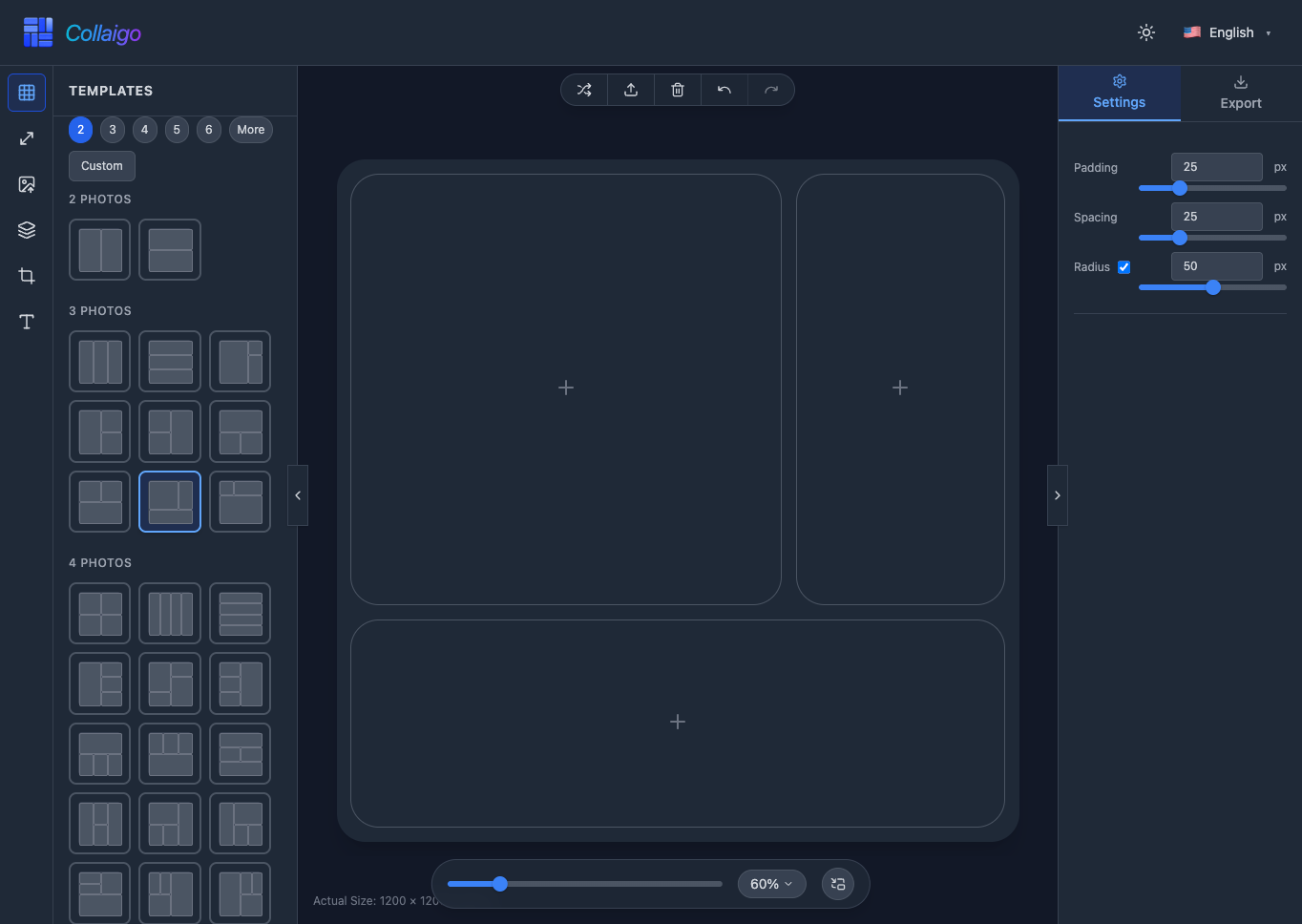
- Templates automatically adjust your images to fit the layout, maintaining optimal display quality.
- Switch templates anytime - your images will be preserved without needing to re-upload.
- Use numeric navigation to quickly locate and switch templates, improving operational efficiency.
Custom Templates
In addition to preset templates, you can create fully custom grid layouts. Click the 『Custom』 button in the template navigation bar to enter the custom template interface, as shown below:
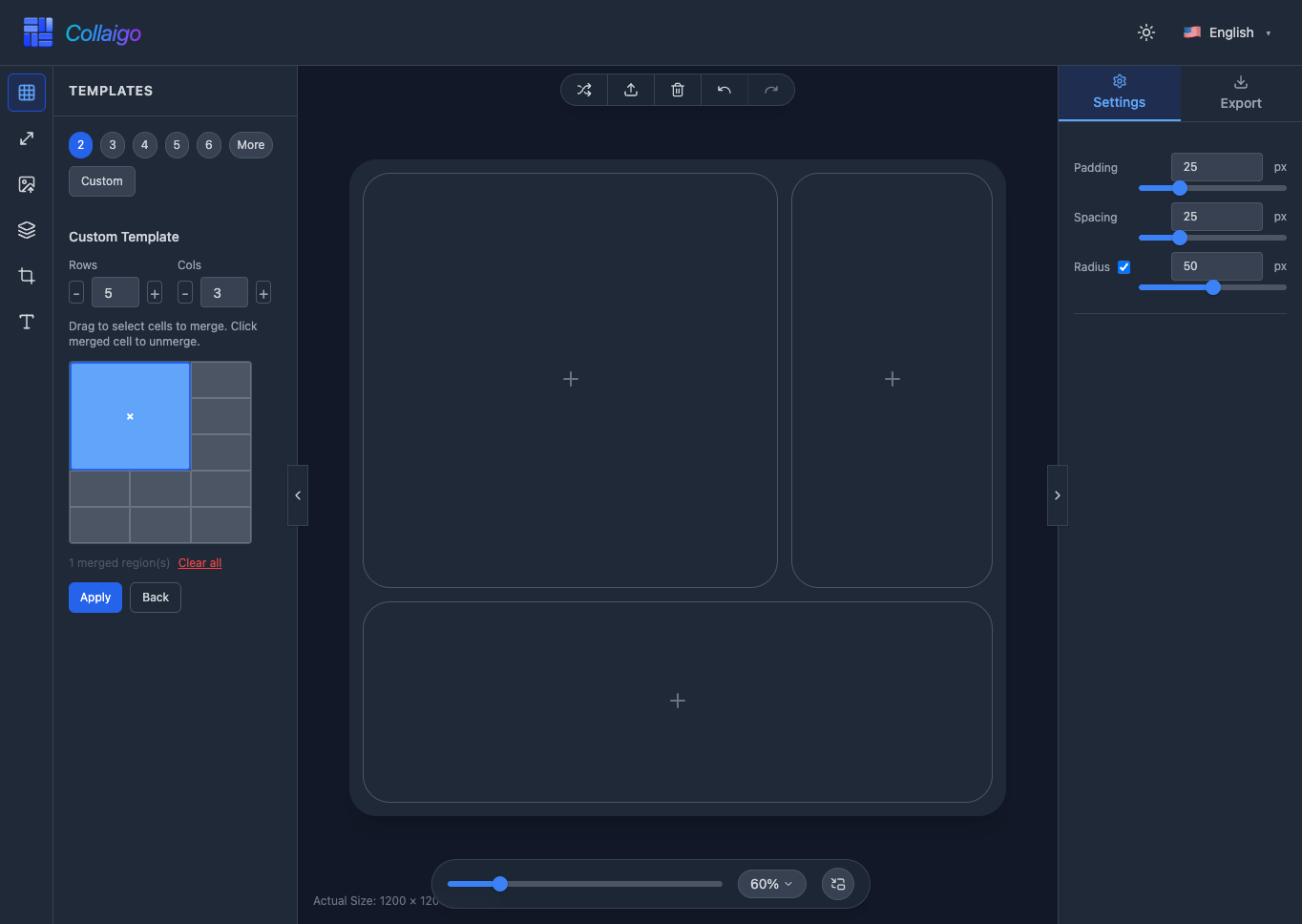
- Click the 『+』 or 『-』 buttons in the row or column controls, or enter numbers in the input boxes to set rows and columns, supporting up to 20x20 grid layouts.
- Drag to select cells for merging, creating irregular layouts.
- Click merged cells to unmerge them.
- Click 『Clear All』 to remove all merged regions and quickly reset to a regular grid.
- Click 『Apply』 to save the custom template, as shown below. Hover over a custom template to show the delete button, then click to delete.
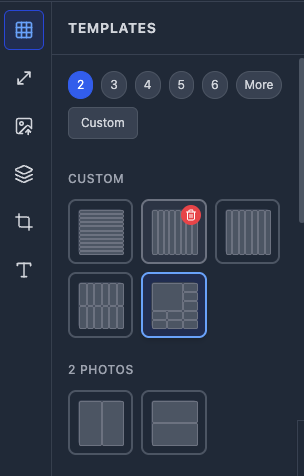
Image Stitching
By creating custom templates, you can also achieve image stitching, supporting up to 20 photos horizontally or vertically. Follow these steps to create a vertical 20x1 stitched image:
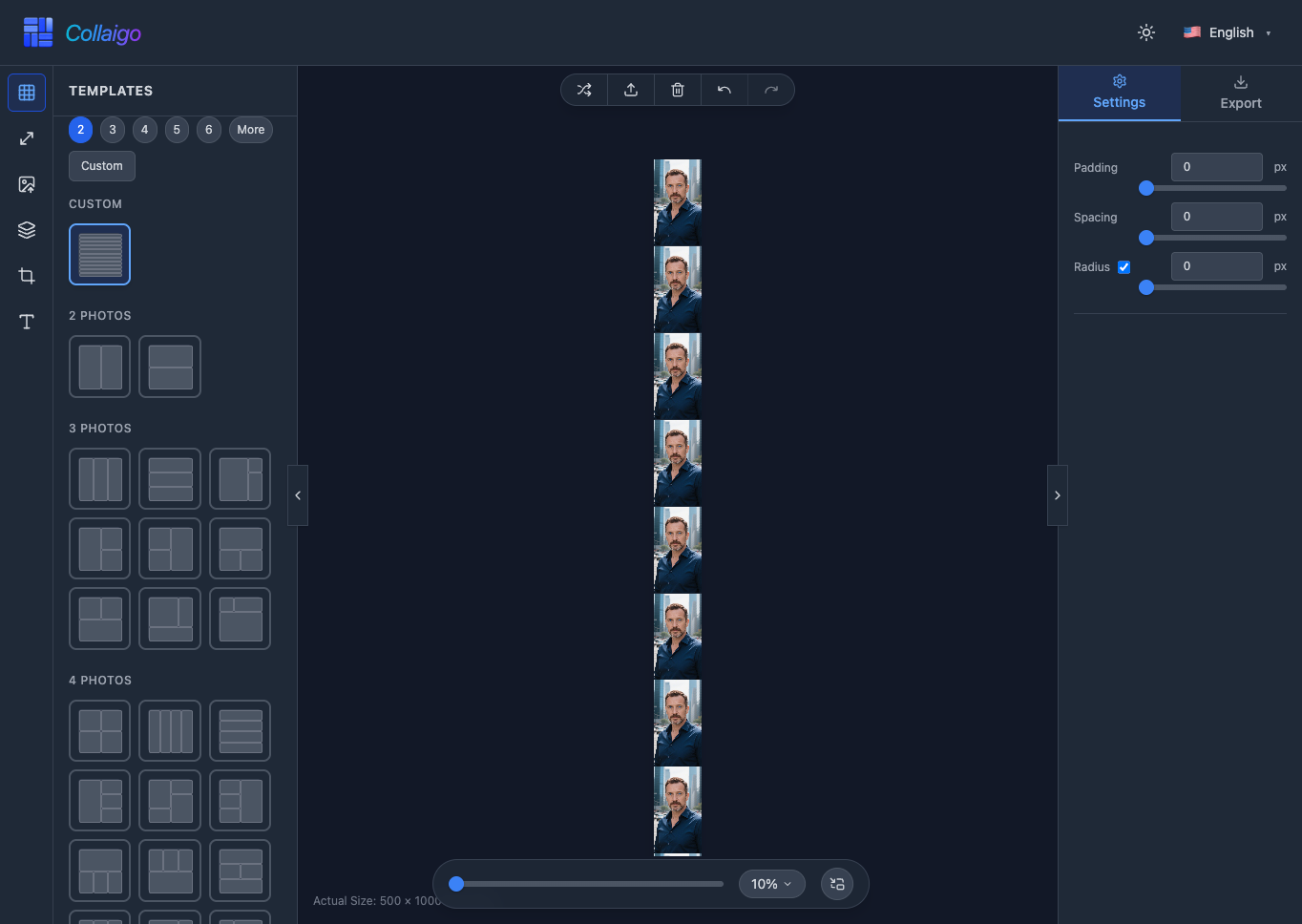
- Create a 20x1 custom template, save and apply it.
- Create a custom canvas size with a 1:20 aspect ratio, e.g., 500x10000, save and apply it.
- Set padding, spacing, and corner radius all to 0.
- Import images one by one, or import photos into the photo library and then load them with one click.