Image Settings
When you select an image slot, you can adjust various image properties in the right sidebar. These settings allow you to fine-tune how each image appears in your collage.
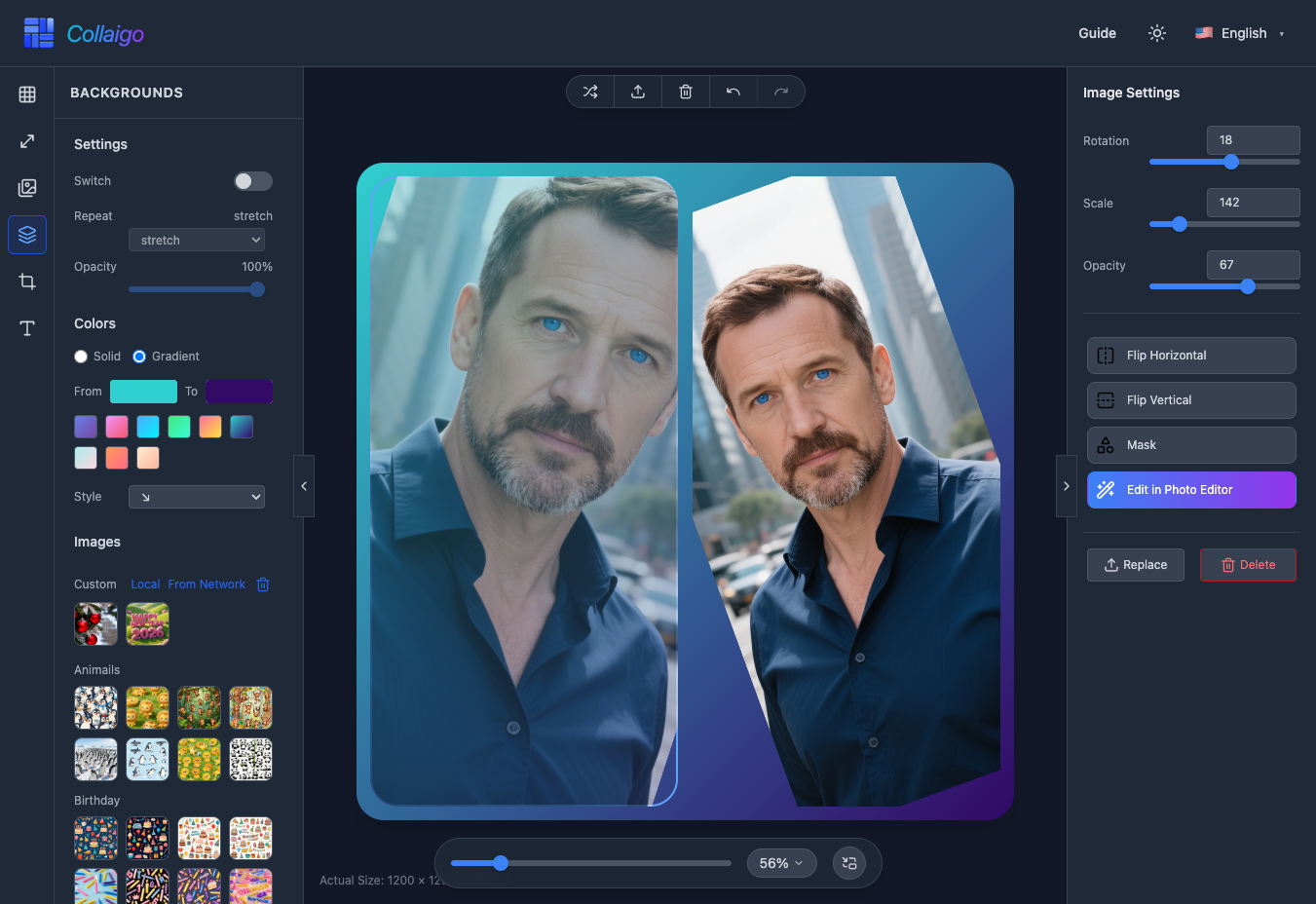
Basic Adjustments
In the image settings panel, you can make basic position and display adjustments to images.
- 『Rotation』: Adjust image rotation angle (-180° to 180°) via slider or input box for rotation at any angle.
- 『Scale』: Adjust image scale (100%-350%) to enlarge or shrink images to fit the collage layout.
- 『Opacity』: Adjust image opacity (0%-100%) for fade effects or blending with other elements.
Flip Operations
You can flip images horizontally or vertically to create mirror effects.
- 『Flip Horizontal』: Click the button to flip the image horizontally, creating a mirror effect suitable for adjusting image orientation.
- 『Flip Vertical』: Click the button to flip the image vertically, creating a vertical mirror effect.
Mask Effects
The mask feature allows you to apply various shape masks to images and adjust edge feathering.
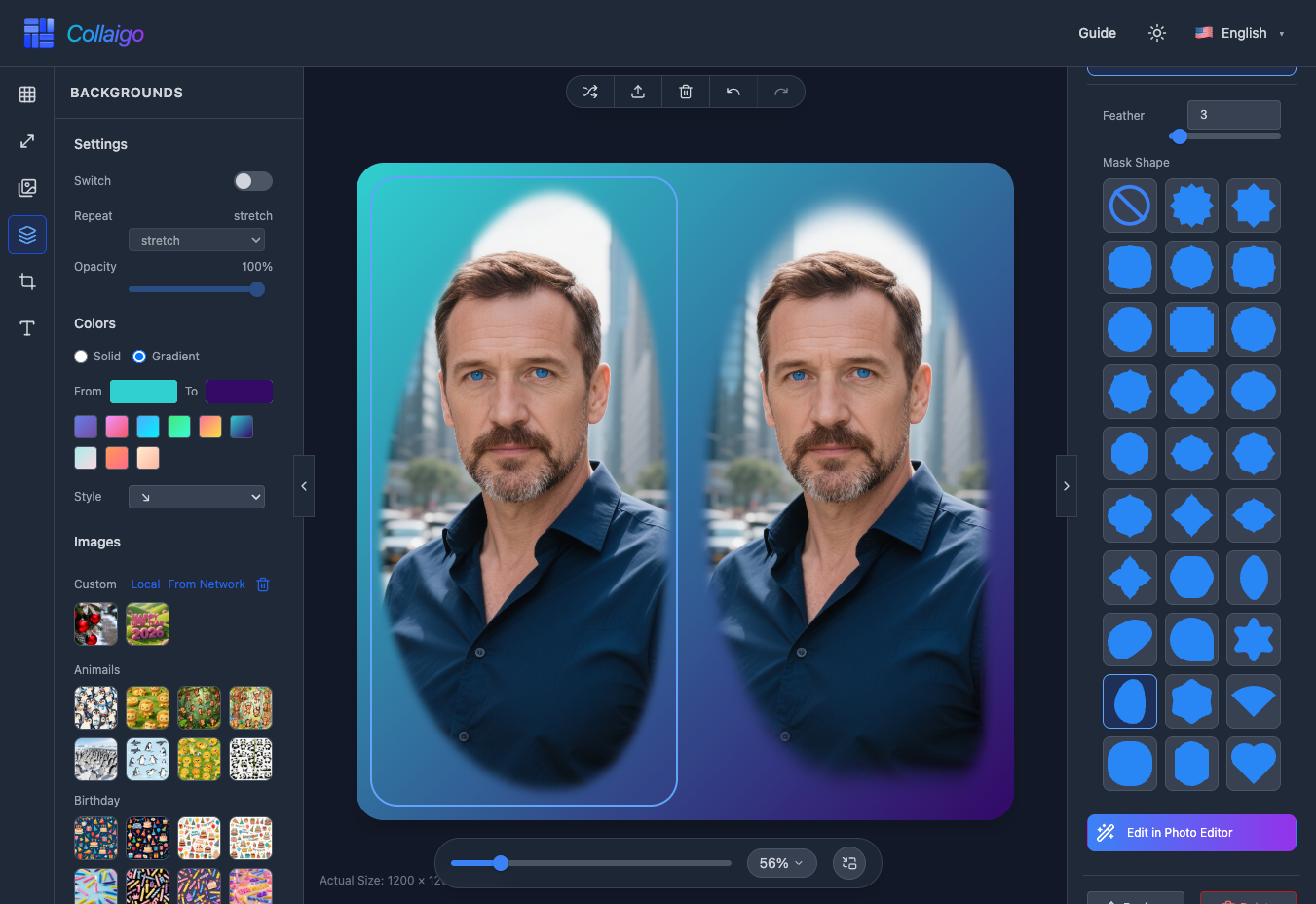
- Click the 『Mask』 button to expand the mask settings panel, where you can adjust both shape and feather parameters.
- 『Mask』->『Mask Shape』: Choose from multiple preset shapes. We provide 29 different mask shapes.
- 『Mask』->『Feather』: Adjust mask edge feathering (0-100). Higher values create softer edges for natural transitions.
Image Editing
『Edit in Photo Editor』: Click the button to jump the current image to the photo editor for advanced editing operations like cropping, filters, and adjustments. After editing, you can return to the collage to continue creating.
Other Operations
In addition to adjusting image properties, you can also replace or delete images.
- 『Replace』: Click the button to select a new image file, replacing the image in the current slot while keeping original settings unchanged.
- 『Delete』: Click the button to delete the image in the current slot, clearing that slot.