Other Canvas Operations
In addition to the above features, the canvas provides various shortcut buttons and keyboard shortcuts to help you complete collage creation more efficiently.
Top Canvas Toolbar
The center top of the canvas provides 5 common operation buttons:
- 『Randomize Layout』: Randomly shuffle the positions of currently loaded images to quickly try different layout effects.
- 『Batch Import』: Select multiple images at once to automatically fill empty template slots.
- 『Clear』: Clear all images and backgrounds on the canvas, quickly resetting to a blank state.
- 『Undo』: Undo the last operation, supporting multiple undo steps.
- 『Redo』: Restore undone operations, used together with the undo function.
Image Top-Right Operation Buttons
When an image is loaded on the canvas, hovering over it shows 4 operation buttons in the top-right corner:
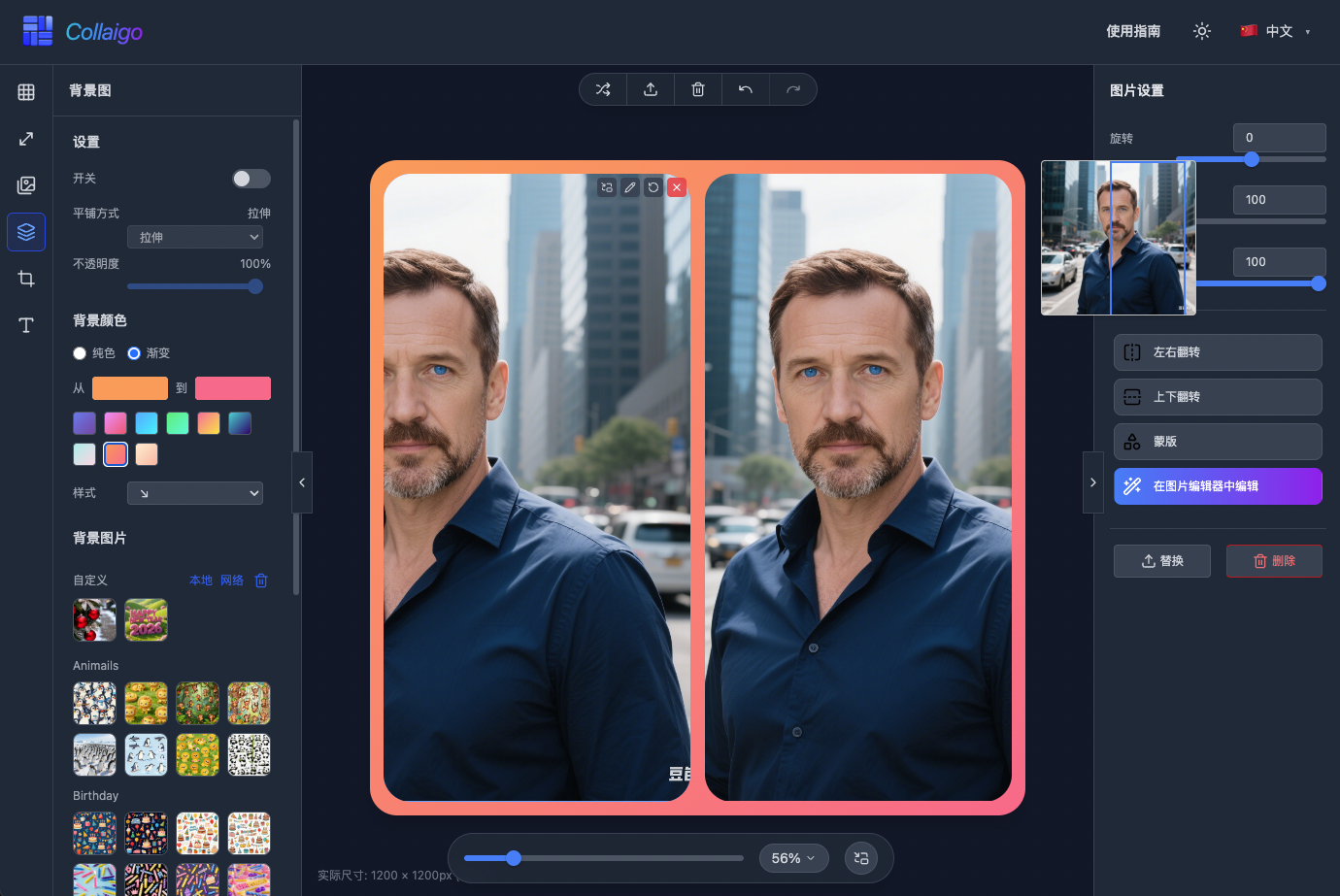
- 『Open Thumbnail』: Open a fixed thumbnail window for this image to view and adjust its position in the slot. Drag the image or drag the box in the thumbnail to adjust the image position in the slot. Click the 『Open Thumbnail』 button again to close the thumbnail window.
- 『Replace Image』: Click to select a new image to replace the image in the current slot, keeping original rotation, scale, and other settings unchanged.
- 『Reset』: Reset all settings (rotation, scale, opacity, offset, etc.) of the current image to default values.
- 『Delete』: Delete the image in the current slot, clearing that slot.
Bottom Canvas Zoom Control
The center bottom of the canvas provides zoom and thumbnail control functions:
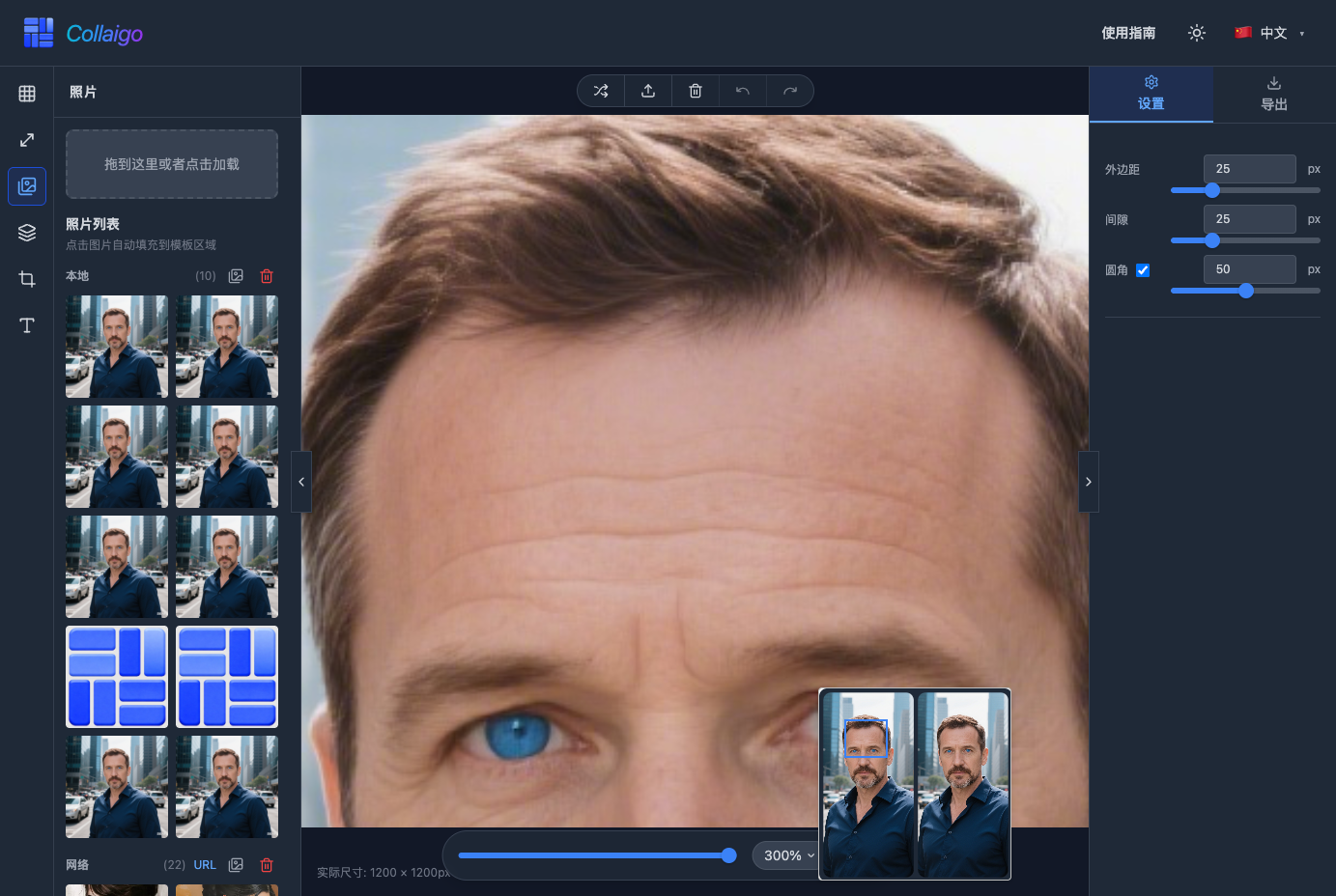
- Zoom Slider: Drag the slider to adjust canvas display scale (10%-300%) for viewing details or overall effects.
- Zoom Percentage Dropdown: Click the percentage button to quickly select preset zoom levels (10%, 25%, 50%, 75%, 100%, 150%, 200%, 300%), or choose "Fit" to auto-fit window size, or "Actual Size" to display at 100% scale.
- Thumbnail Button: Click to open/close the overall canvas thumbnail. Dragging in the thumbnail quickly navigates to different areas of the canvas, especially useful for large canvases.
Other Shortcuts
Here are other shortcut operation methods:
- Arrow Keys (↑↓←→): When an image slot is selected, use arrow keys to fine-tune the image position in the slot. Hold Shift to increase movement step size.
- Drag to Swap: Dragging images between slots quickly swaps their positions without deleting and re-adding.
Best Practice Tips
- For best results, use high-resolution images (at least 1000px on the longest side) to ensure clear exports.
- Use zoom controls (Fit/Actual/Percentage) to better view your work's details and overall effects.
- During editing, make good use of undo/redo functions to confidently try different design effects.