Backgrounds
Backgrounds add depth and style to your collages. You can use solid colors, gradient backgrounds, or image backgrounds.
Color Backgrounds
Solid Color Background
Click 『Background Color』->『Solid』 to see the solid color background panel. There are three ways to set it:
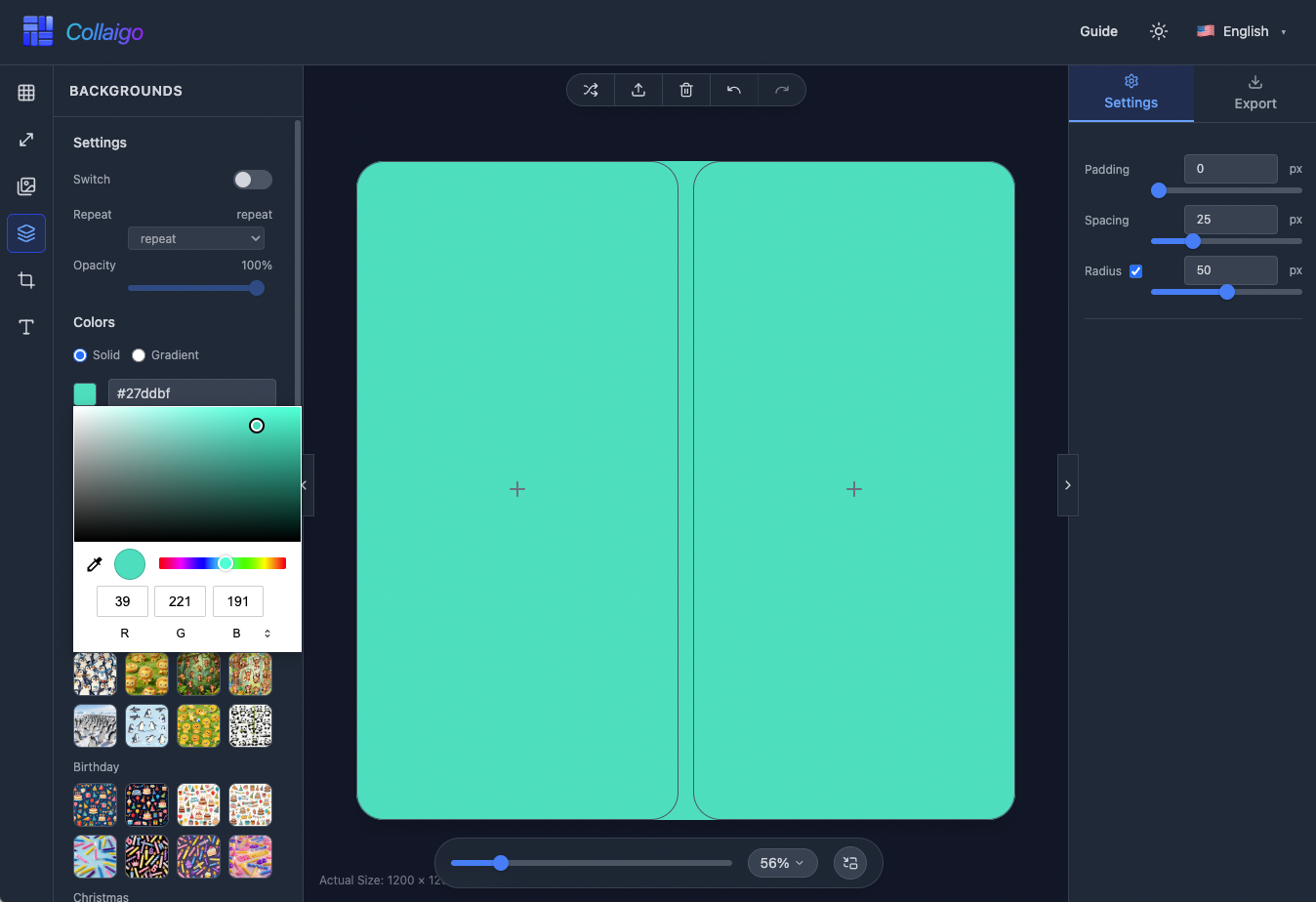
- Choose from preset colors: white, black, red, orange, yellow, green, cyan, blue, purple, and other common colors.
- Use the color picker to customize any color.
- Directly enter a hexadecimal color value (e.g., #ffffff) for quick setup.
Gradient Background
Click 『Background Color』->『Gradient』 to see the gradient background panel. There are 2 ways to set it:
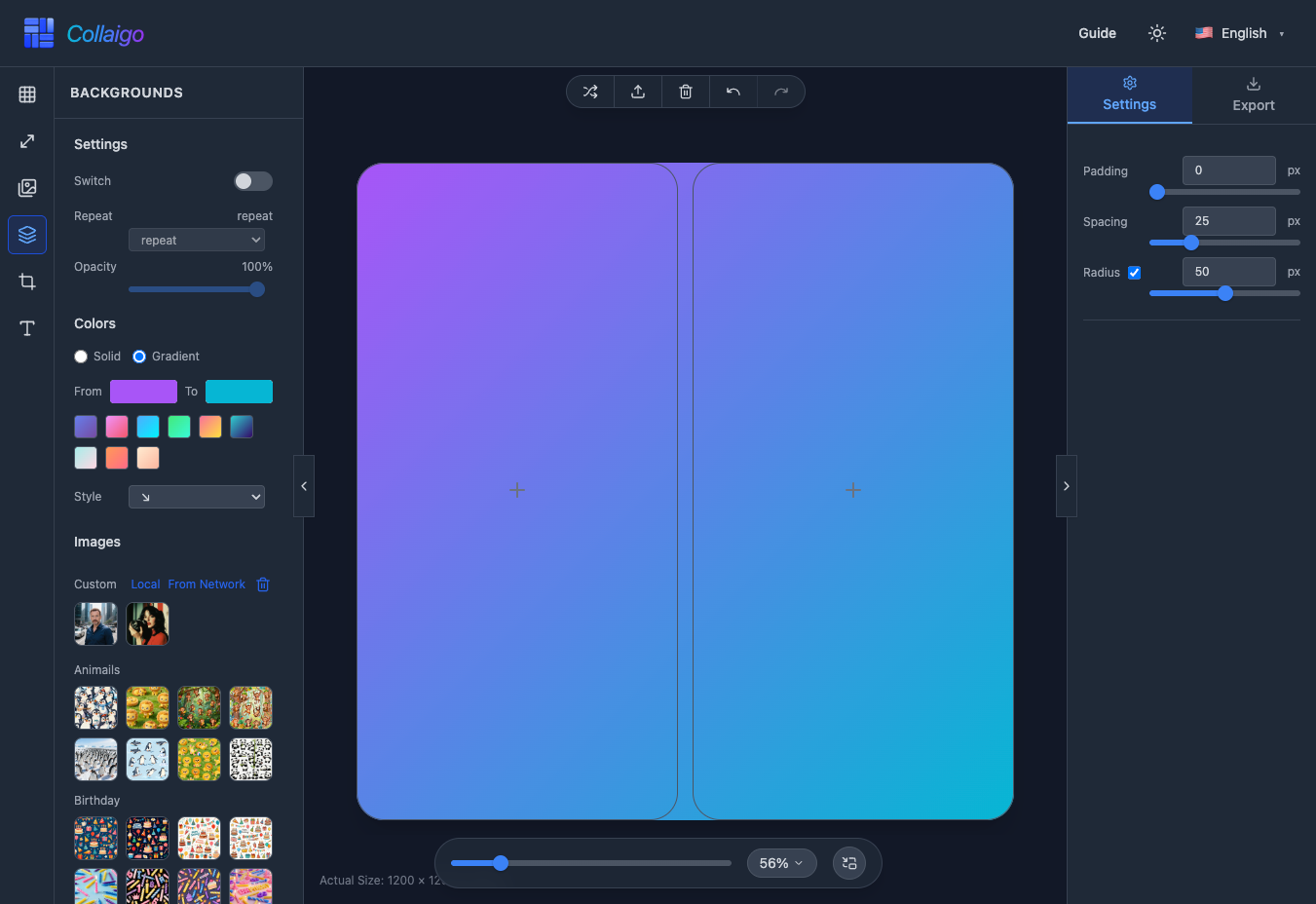
- Choose from preset gradients: Purple Dream, Pink Dream, Sky Blue, Mint Fresh, Sunset, Deep Sea, and many other beautiful gradients.
- Custom gradient: select start and end colors.
- You can also choose the gradient direction from the 『Style』 dropdown: left to right, top to bottom, bottom-left to top-right, or top-left to bottom-right.
Image Backgrounds
Image Background Materials
You can use images as collage backgrounds. You can use official materials or choose custom background images: load from local or download directly from the network.
NOTE
All custom backgrounds are stored only in your browser's local cache (IndexedDB) and are not uploaded to the server.
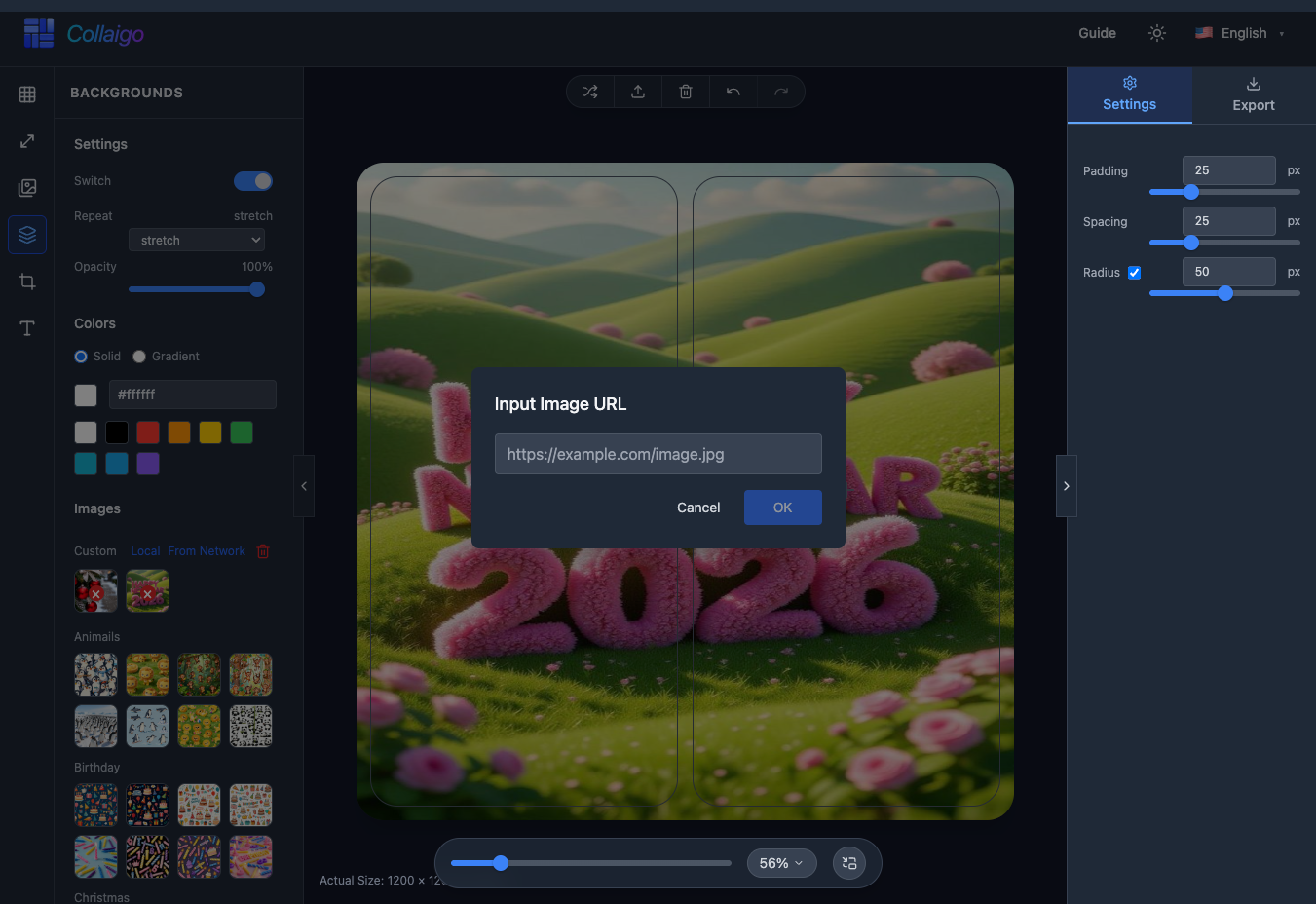
- Official materials provide background images for various themes, including: Animals, Birthday, Christmas, Scenery, and more.
- Load from local: Click 『Background Image』->『Custom』->『Local』, open the dialog to select local files and add them to the background image list.
- Download from network: Click 『Background Image』->『Custom』->『Network』, enter the image URL to download the image locally.
- Click the delete icon to the right of 『Background Image』->『Custom』 to enter delete mode, then click the background thumbnail you want to remove.
Image Background Settings
After applying an image background, you can configure the background image.
- 『Settings』->『Switch』: Enable or disable the image background at any time.
- 『Settings』->『Repeat Mode』: Choose stretch (fill entire canvas) or repeat (repeat pattern).
- 『Settings』->『Opacity』: Adjust the background image opacity (10%-100%) to blend with color backgrounds.